
MultiCharts Strategy Builder: GSB with MultiCharts
Genetic System Builder (GSB) is a MultiCharts strategy builder and generator: it searches your data for trading systems and writes each one as a MultiCharts script. You compile it as a signal in the PowerLanguage Editor, check it matches GSB, then simulate before going live.
By GSB Pro · Updated
On this page
What a strategy generator does for MultiCharts users
MultiCharts runs, backtests and automates strategies written in PowerLanguage. You still have to decide the rules. A strategy generator searches for those rules for you, from the market, data and settings you supply.
GSB does the search with a genetic algorithm. It builds and tests large numbers of candidate systems from its built-in indicators, then keeps the ones that hold up on data held back from the build.
MultiCharts is one of GSB's two lead platforms, alongside TradeStation. New GSB features reach them before NinjaTrader. GSB writes a separate MultiCharts version of every system, because the time code differs between the two platforms.
How GSB builds a system and exports it to MultiCharts
The full click-by-click steps are in the Strategy Guide's Export to MultiCharts page. In short:
- Build and select. Run a build, then choose a system and walk it forward. See Building Strategies, Selecting Systems and Walk-Forward Optimization.
- Load GSB's functions once. In GSB click File → Supplementary Scripts (TS & MC). Import the latest .pla file into the PowerLanguage Editor. Since build 70.58, MultiCharts needs the .pla, not the .ELD. See Loading GSB Functions.
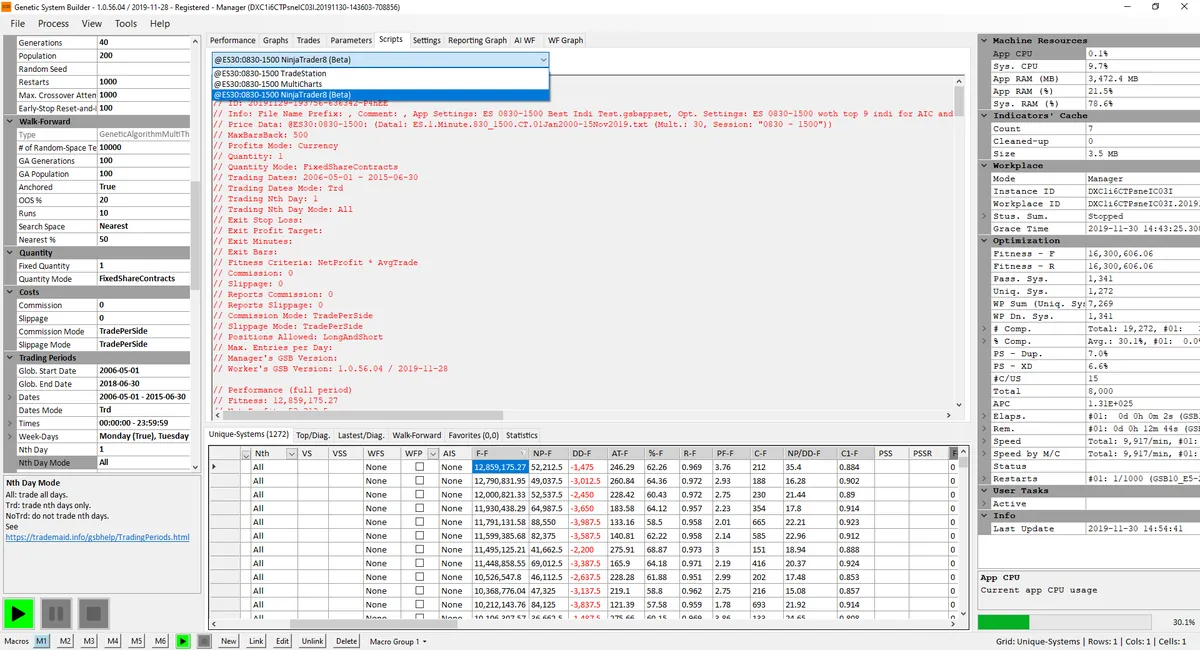
- Copy the MultiCharts script. Select the system, open the Scripts tab and choose the line ending in MultiCharts, or MultiCharts / WF after a walk-forward. Right-click and copy it.
- Create and compile a signal. In the PowerLanguage Editor, create a new signal named after the system ID. Delete any template text, paste the code and compile.
- Match the chart and insert the signal. Use the same symbol, bar size, dates and session as GSB, on local time. Set bars back to 500, and use GSB's commission, slippage and quantity.
Hypothetical Performance Disclosure
Newer builds offer Copy for match check, for reconciling with GSB, and Copy for live trading, the code you trade. Don't trade the match-check code. More on GSB's exported code is on the platform export page.
Data setup: build on MultiCharts data
Build on price data exported from the platform you'll trade on. The open, high, low, close and volume of the same bar can differ between sources.
- Export your chart's data with the chart on local time. Trademaid's Exporting Data from MultiCharts video shows the clicks.
- Save it in GSB's Price Data folder, named symbol.time frame.bar type.anything you like.txt.
- Keep every data stream on the same time basis. A mix of local and exchange time breaks the match.
- In QuoteManager, session templates stay in exchange time while charts and GSB data show local time.
Volume history differs by feed
IQFeed and most MultiCharts feeds store only total volume in history, while TradeStation's tick setting splits up and down volume. A system built on TradeStation tick volume can backtest differently in MultiCharts. Peter Zwag's own set-up uses TradeStation data inside MultiCharts.
Full steps for loading the file are on Uploading Data to GSB. For a new market, see Datasets and Symbols.
Check MultiCharts matches GSB
Open MultiCharts' strategy performance report. Over exactly the same dates, compare net profit, drawdown and number of trades with GSB's Performance tab.
With the match-check code, trades should match GSB's at least 99% on the same chart. If they don't, check bars back, the price data, session times, time zone, costs, volume setting and GSB functions first.
Less obvious causes MultiCharts users have found include an old contract month after a rollover and entries on the session's last bar. Stopping new entries a little before the close helps.
Live-trading considerations on MultiCharts
Simulate for at least two weeks, then go live small. For simulation, broker connection and automation settings, follow MultiCharts' own documentation. Live Trading Operations covers end-of-day exits, holidays and rollovers.
- Two stop orders at once. With extra stop types, GSB code can place two stops together. Use market-if-touched orders or keep to one stop type.
- Local stop and target emulation uses the broker's prices, so it can fire outside your session.
- Several systems on one symbol at Interactive Brokers can have opposing orders rejected as crossing. Stagger exits or use sub-accounts.
- More than one contract. By default MultiCharts applies stops to the whole position, so size the stop for that.
- Session-close exits. A known issue made SessionEndTime return wrong times with the TradeStation data feed. Watch the first few end-of-day exits.
- Micro symbols use a one-digit year in MultiCharts, unlike TradeStation's two-digit year.
- One system per chart.
Honest limits
- GSB runs on Windows only.
- GSB searches its built-in indicators. It isn't a tool for testing your own indicator ideas.
- Some MultiCharts menu paths aren't in Trademaid's help, so you'll need MultiCharts' own help for those clicks.
- The learning curve is real. The free 53-lesson course covers each stage.
- The free 14-day trial has a smaller indicator set than the full version.
- A reconciled backtest is still hypothetical. Systems can and do fail out of sample.
Weighing GSB against other generators? See our comparison page. GSB Pro is an authorised reseller, so it has an interest in the sale.
Frequently asked questions
Does GSB export to MultiCharts?
Yes. GSB's Scripts tab has a MultiCharts version of each system, plus MultiCharts / WF after a walk-forward. You paste it into a new signal in the PowerLanguage Editor and compile it.
Can I use the TradeStation code in MultiCharts?
No. The time code differs between the platforms, so choose the MultiCharts line before you copy. MultiCharts also needs its own .pla function file rather than the .ELD.
What should bars back be set to in MultiCharts?
Trademaid says bars back must be 500 on TradeStation and MultiCharts. It matches the MaxBarsBack: 500 line in the script header.
Why don't my MultiCharts results match GSB?
Check bars back, the price data source, bar interval, session, time zone, costs and volume setting. Mixed time bases between data streams and an old contract month are common hidden causes.
What is MultiCharts?
MultiCharts is a trading platform whose PowerLanguage Editor holds strategy code as signals. GSB's Supplementary Scripts (TS & MC) folder serves both MultiCharts and TradeStation, its two lead platforms.
Do strategy generators work for futures?
GSB is built around futures, and Trademaid's examples include ES, NQ, CL and gold. Any generated system still needs out-of-sample testing, a walk-forward and simulation before live trading.
Try it on your own market
Start a free 14-day GSB trial and learn the method with our free 53-lesson video course. GSB Pro is an authorised Trademaid reseller and earns a commission if you buy.