
Loading GSB Functions
Important first step: Load GSB functions into TradeStation or MultiCharts before working with GSB Pro systems
Why Load Functions First?
Trading systems developed in GSB Pro use special TradeStation/MultiCharts functions. These functions must be imported first before any GSB-generated system codes will work in your trading platform.
Step 1: Locate GSB Function Scripts
In GSB Pro, access the required function scripts:
- Open GSB Pro (Standalone, Manager, or Worker)
- Click File → Supplementary Scripts (TS & MC)
- A window will appear showing the location of the function files
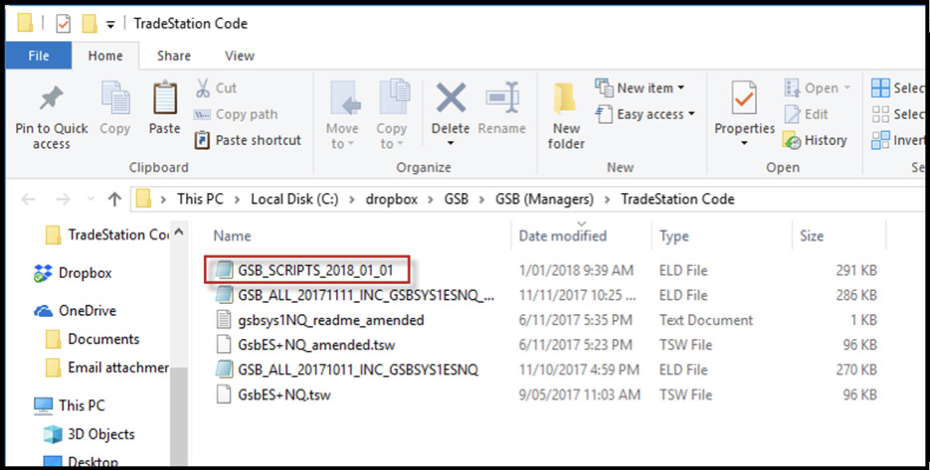
Locate the GSB function files (.ELD) in the TradeStation Code folder
Function File Location:
C:\GSB\Functions\GSBFunctions.eldStep 2: Import Functions into TradeStation
Load the GSB functions into TradeStation's development environment:
Method 1: Double-Click Installation
- Navigate to the GSB Functions folder in Windows Explorer
- Double-click the
GSBFunctions.eldfile - TradeStation will automatically import all functions
- Wait for the import process to complete
Method 2: Manual Import
- Open TradeStation Development Environment
- Go to File → Import → EasyLanguage Document
- Browse to
C:\GSB\Functions\ - Select
GSBFunctions.eld - Click Import and wait for completion
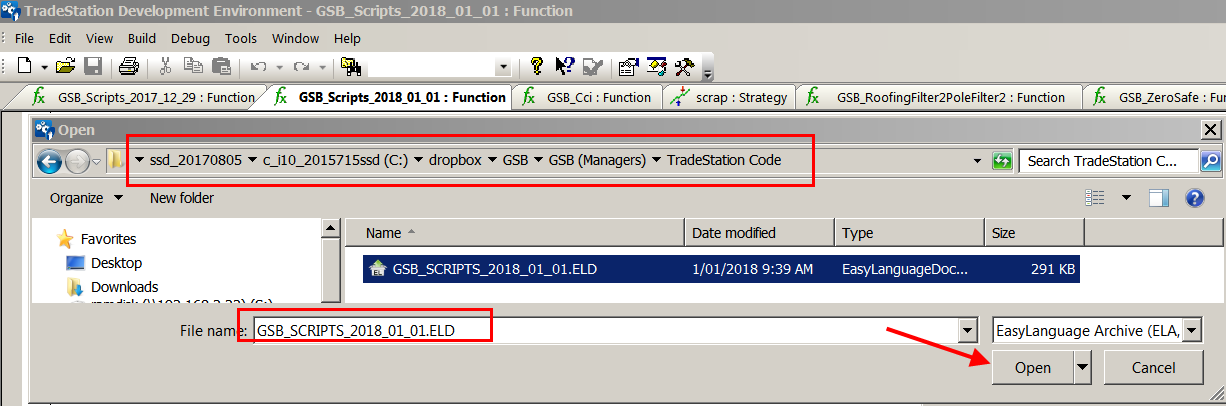
Select the .ELD file in TradeStation to import GSB functions
Step 3: Import Functions into MultiCharts
For MultiCharts users, follow these steps:
- Open MultiCharts PowerLanguage Editor
- Go to File → Import
- Navigate to
C:\GSB\Functions\ - Select
GSBFunctions.eld - Click Open to import all functions
- Verify functions appear in your Functions list
Step 4: Verify Successful Installation
After importing, verify the functions are available:
TradeStation Verification
- Open TradeStation Development Environment
- Go to View → EasyLanguage Dictionary
- Look for functions starting with "GSB"
- You should see functions like
GSB_Entry,GSB_Exit, etc.
MultiCharts Verification
- Open PowerLanguage Editor
- Check the Functions section in the left panel
- Look for GSB functions in the list
- Verify they compile without errors
Important Notes
Session Times and Settings
- When exporting systems, ensure session times match between GSB and your platform
- Session times should end at market close (e.g., 3:00pm Central for ES, not 3:15pm)
- Bars back setting in TradeStation/MultiCharts must be set to 500
- Use local computer time, not exchange time, for data timestamps
Next Steps
Now that GSB functions are loaded, you can:
- Begin preparing your price data in TradeStation/MultiCharts
- Export data to GSB for system development
- Build trading systems in GSB Pro
- Export completed systems back to your trading platform