Automation & Macros

    Automate repetitive workflows by recording and replaying sequences of actions in GSB Pro

    What are Macros?

    Macros in GSB Pro allow you to automate repetitive tasks by recording sequences of actions and replaying them with a single click. This powerful feature saves time when testing multiple scenarios, applying the same settings across different datasets, or running complex multi-step workflows.

    Instead of manually clicking through menus and dialogs repeatedly, you can record your actions once and replay them instantly using the macro buttons M1 through M6.

    When to Use Macros

    Macros are ideal for:

    • Testing the same settings across multiple symbols or datasets
    • Applying favorite filters to different result sets
    • Running walk-forward optimization with consistent parameters
    • Switching between Dates Mode configurations quickly
    • Automating multi-step validation workflows

    Interface Overview

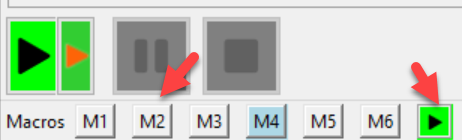
    GSB Pro provides six macro slots (M1-M6) accessible from the main interface. Each macro button can store a different automation sequence, giving you quick access to your most common workflows.
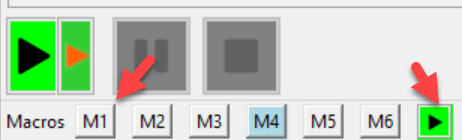

    Macro buttons M1 through M6 in GSB Pro interface showing recording and playback controls
    Macro Buttons: The six macro slots (M1-M6) allow you to save and execute different automation sequences. The gray record and stop buttons control macro recording.
    Script tab in GSB Pro showing full-period script for TradeStation's EasyLanguage and MultiCharts' PowerLanguage
    Script Tab: Access advanced macro scripting capabilities through the Script tab, which integrates with TradeStation's EasyLanguage and MultiCharts' PowerLanguage.

    Building Macros: Recording Actions

    To create a macro, click the record button, perform your desired sequence of actions in GSB Pro, then click stop. GSB Pro captures every menu selection, checkbox click, and parameter change during recording.

    Common Actions to Record
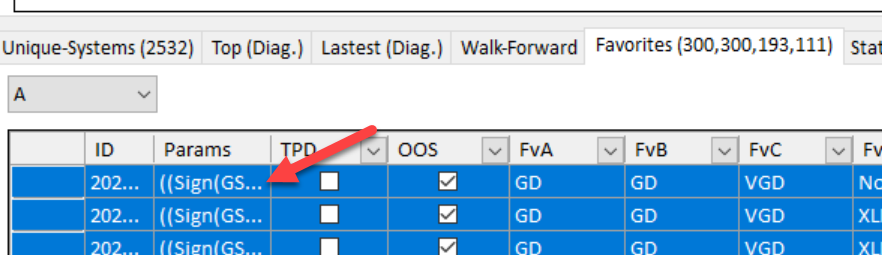
    Trading Price Data (TPD) checkbox in system parameters table
    TPD Selection: Macros can automate selecting systems with specific Trading Price Data (TPD) configurations, streamlining system filtering workflows.
    System parameters table showing ID and parameter columns with checkboxes
    System Selection: Record checkbox selections to quickly filter systems based on specific parameter combinations or performance criteria.
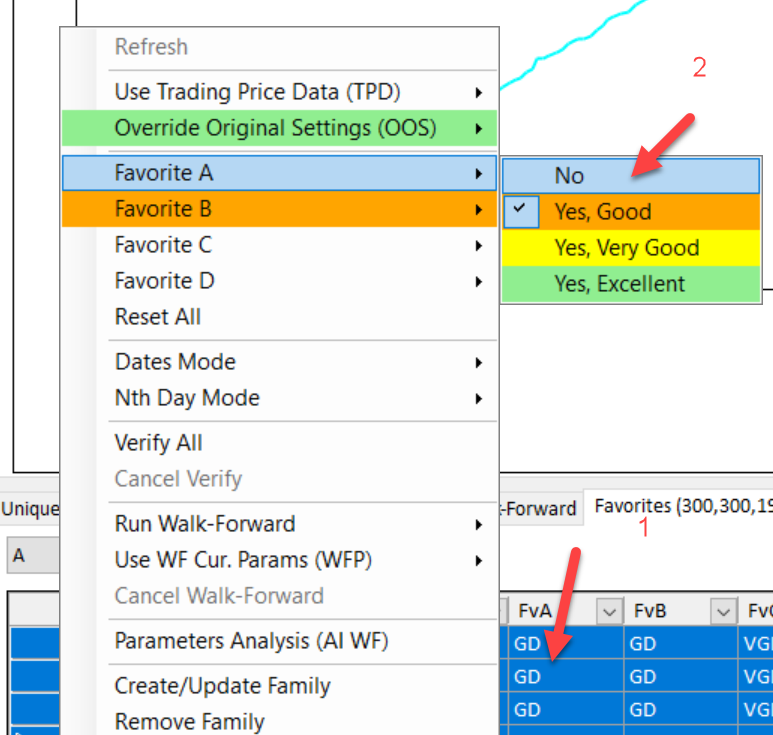
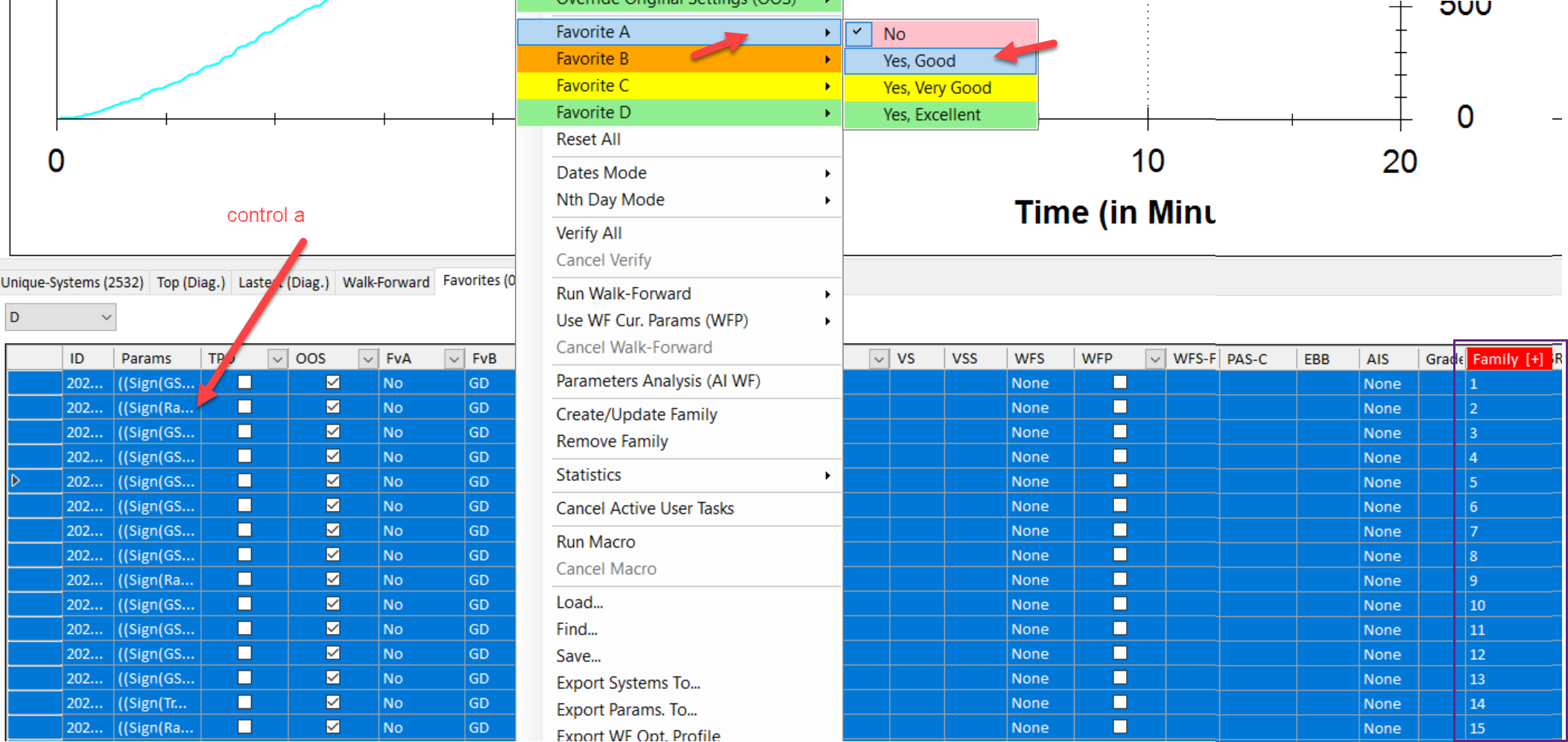
    Favorites menu showing quality ratings from No to Yes Excellent, with Favorite B highlighted
    Favorite Filters: Automate applying favorite quality ratings (Good, Very Good, Excellent) to filter systems based on robustness criteria. Record selections for Favorites A through D.
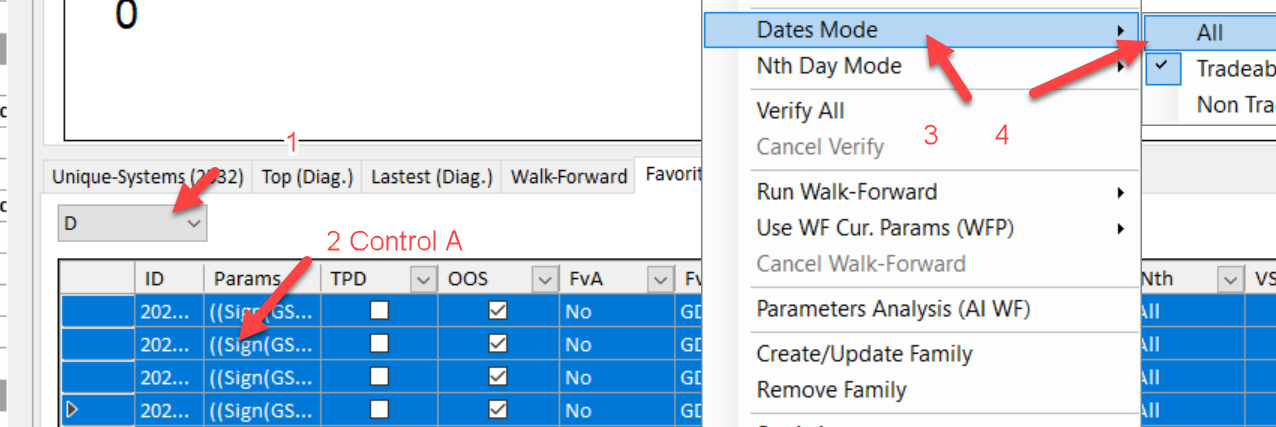
    Dates Mode menu showing options for All, Tradeable, and Non Tradeable date filtering
    Dates Mode Selection: Macros can switch between different date filtering modes (All, Tradeable, Non-Tradeable) to test system performance across different time periods.
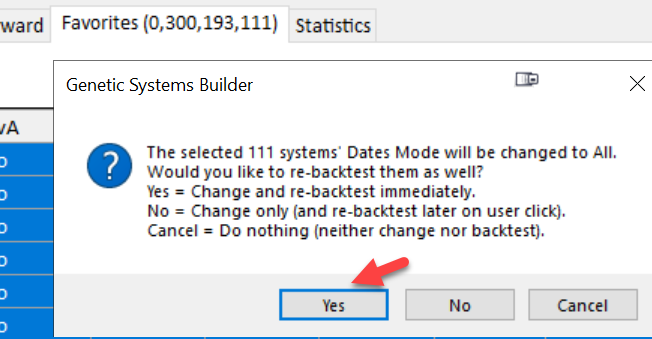
    Confirmation dialog asking if 111 systems should have Dates Mode changed to All with option to re-backtest
    Automatic Re-testing: When changing Dates Mode, GSB Pro can automatically re-backtest affected systems. Macros record your choice (Yes, No, or Cancel) to streamline batch processing.
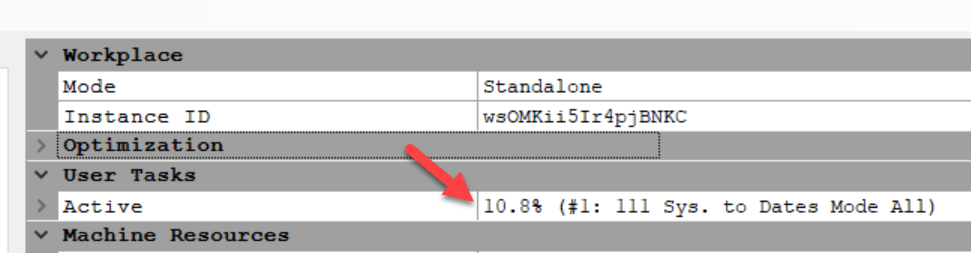
    User Tasks panel showing Active task progress at 10.8% with 111 systems to process in Dates Mode All
    Task Progress: Monitor automated tasks triggered by macros in the User Tasks panel. Track progress of batch operations like re-backtesting systems across different modes.
    Right-click menu showing Create/Update Family option highlighted among other system management options
    Family Creation: Record the process of creating or updating system families to organize related strategies. Macros can automate grouping systems with similar characteristics.
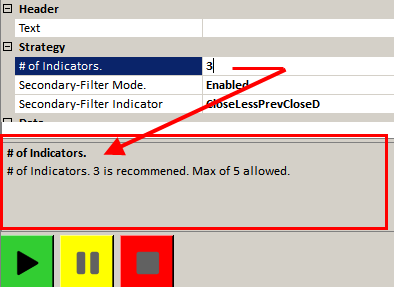
    Strategy configuration showing number of indicators set to 3 with note that max of 5 is allowed
    Strategy Parameters: Macros can record strategy building parameters like the number of indicators, secondary filter modes, and other configuration settings for consistent testing.

    Executing & Managing Macros

    Once recorded, macros can be played back with a single click. The macro system executes each recorded action in sequence, applying the same settings and selections you originally captured.

    Running Macros
    Right-click context menu showing Run Macro and Cancel Macro options among other system commands
    Executing Macros: Right-click on selected systems and choose "Run Macro" to apply your recorded automation. You can also cancel a running macro if needed.
    Favorites submenu showing quality rating options including No, Yes Good, Yes Very Good, and Yes Excellent
    Quality Filtering: Macros can automate applying favorite quality filters to quickly identify systems that meet specific robustness thresholds across multiple test runs.
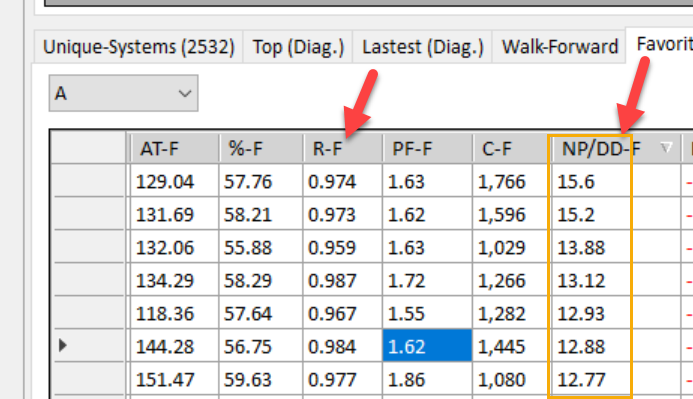
    Statistics table showing NP/DD-F ratio column highlighted with values ranging from 12.77 to 15.6
    Performance Metrics: After macro execution, review key statistics like the NP/DD-F ratio (Net Profit to Drawdown Family ratio) to evaluate system robustness across your automated tests.
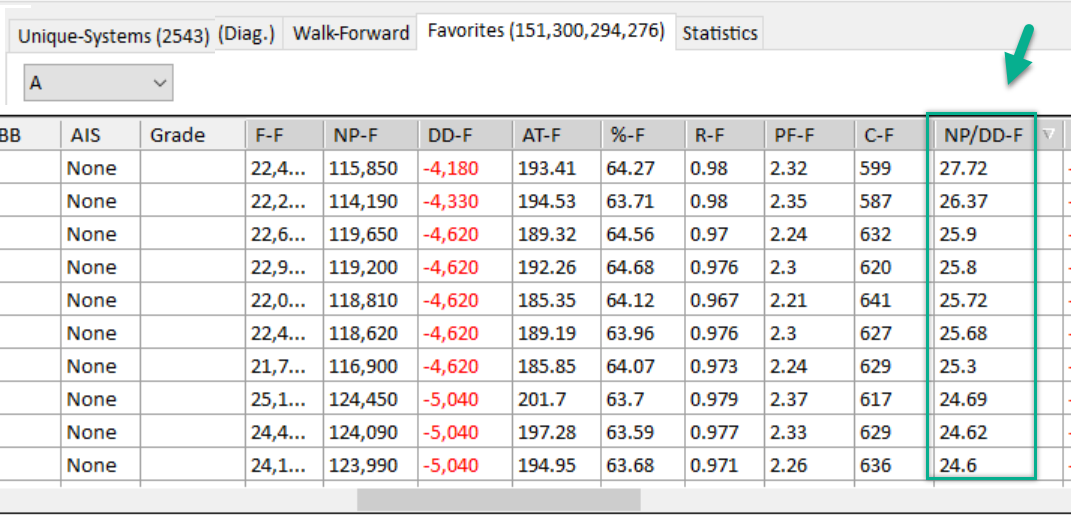
    Unique Systems statistics table showing detailed performance metrics including AIS, Grade, F-F, NP-F, DD-F, and other columns
    Results Analysis: The Statistics tab displays comprehensive results from macro-driven tests, showing how systems perform across different configurations and filtering criteria.
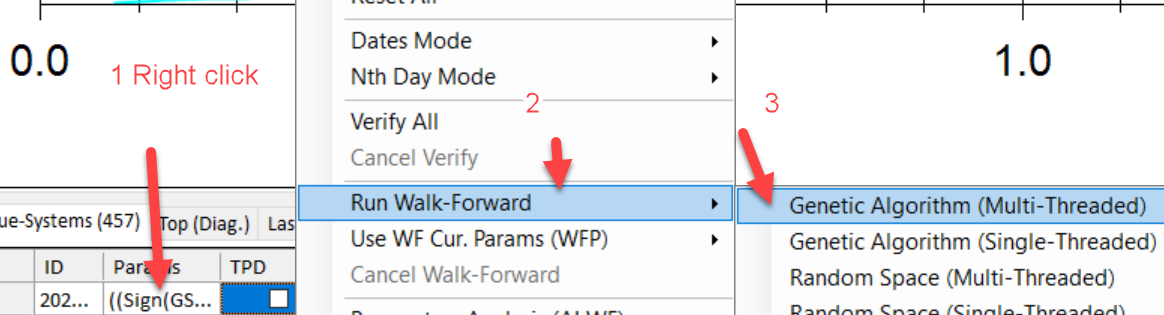
    Walk-Forward submenu showing Genetic Algorithm options including Multi-Threaded and Single-Threaded variants plus Random Space options
    Walk-Forward Automation: Macros can trigger walk-forward optimization using different genetic algorithm modes (Multi-Threaded or Single-Threaded) or Random Space searches for comprehensive validation.

    Best Practices for Macros

    Keep Macros Simple

    Record focused macros that perform one specific task well, rather than long complex sequences. This makes them easier to maintain and debug.

    Test Before Relying

    Always test a newly recorded macro on a small dataset first to ensure it behaves as expected before applying it to large-scale analysis.

    Label Your Macros

    Document what each macro (M1-M6) does. Consider keeping notes about which workflows each macro automates for easy reference later.

    Monitor Progress

    Watch the User Tasks panel when running macros on large datasets. Cancel and adjust if processing takes longer than expected.

    Advanced: Macro Scripting

    For power users, GSB Pro's Script tab provides access to TradeStation EasyLanguage and MultiCharts PowerLanguage integration. This allows you to create more sophisticated automation sequences and export macro-tested systems directly to your trading platform.

    Advanced scripting is covered in the platform-specific export sections of this manual.

    Next Steps

    Now that you understand how to automate workflows with macros, you can streamline your system discovery process. Consider exploring: