
GSB Automation Documentation
Complete guide to automating system-building workflows from GSB strategies to live-ready trade execution.
Introduction
GSB Automation bridges the gap between research in GSB Pro and live execution on TradeStation or other platforms. It orchestrates the complete system-building workflow, handling templates, macros, sessions, and repeatability with minimal human intervention.
GSB Automation automates the generation of trading setups from validated GSB systems. It provides:
- Automated generation of trading setups from GSB systems
- Flexible session, time-bar, and filter controls
- Macro support and indicator import
- Structured output for execution platforms
- Automation summary spreadsheet for consistent deployment
- Improved repeatability and shortcut methods for efficiency
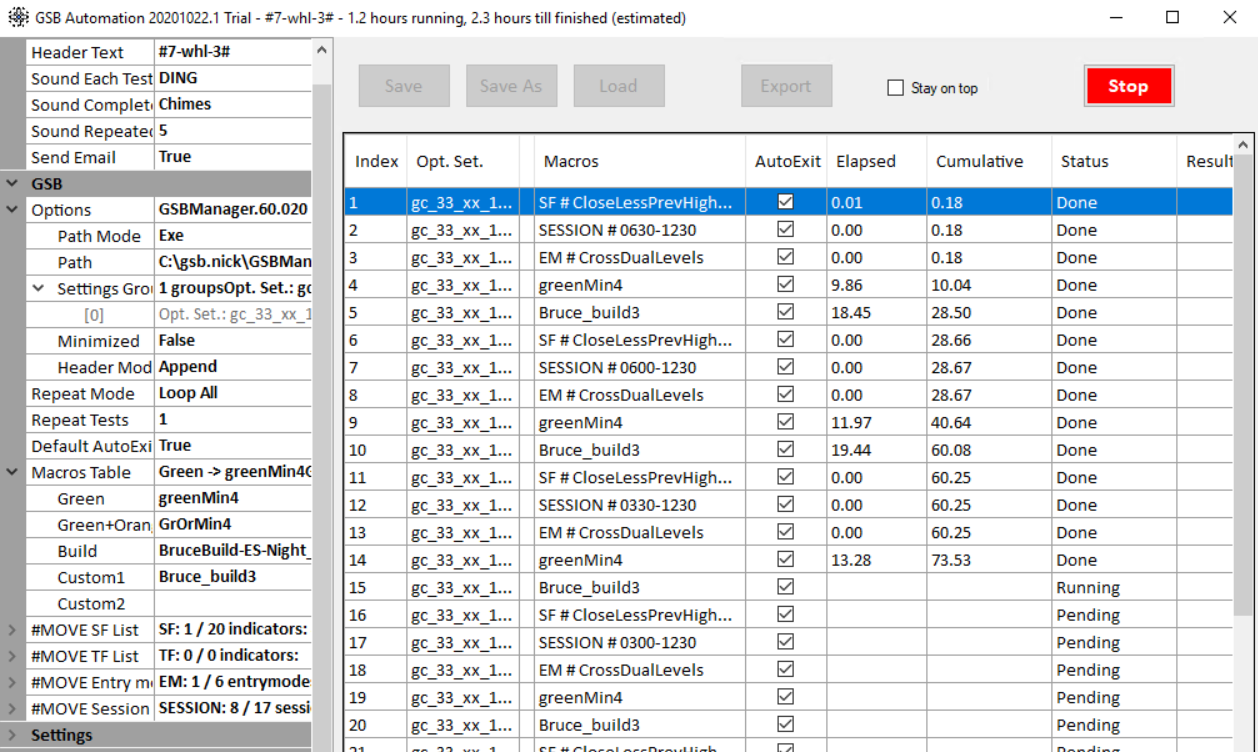
GSB Automation main interface showing system-building workflow orchestration
Supported Platforms
GSB Automation works with TradeStation and other platforms that support EasyLanguage or similar scripting. The workflow is designed to take validated GSB systems and prepare them for live trading execution.
Installation & Setup
Setting up GSB Automation requires a working GSB Pro installation and the GSB Automation license.
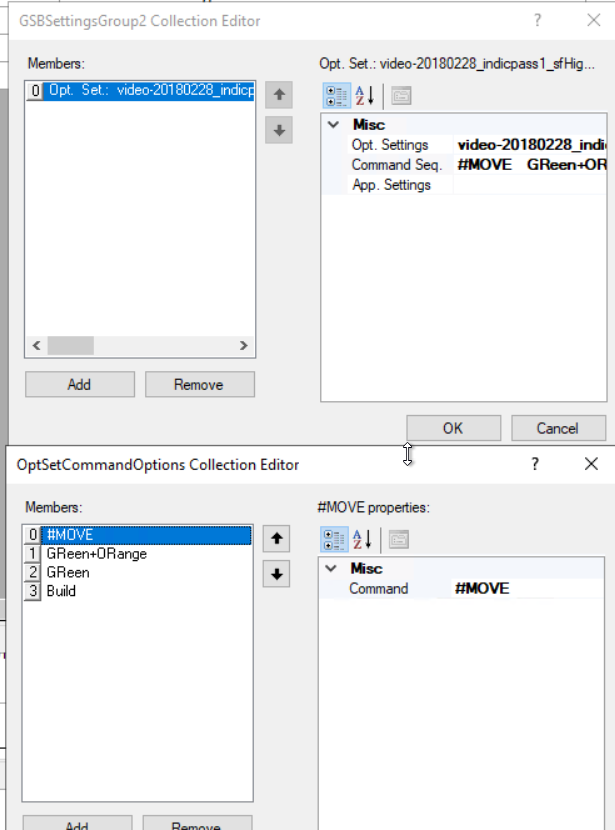
Installation wizard and initial configuration
Installation Process
- Ensure GSB Pro is installed and licensed on your system
- Download the GSB Automation installer from the members area
- Run the installer and follow the setup wizard
- Enter your GSB Automation license key when prompted
- Configure initial settings including data paths and output directories
First-Time Configuration
After installation, configure your market data paths, bar intervals, and initial GSB settings. The automation tool will use these as defaults for all subsequent builds.
Interface & Settings
The GSB Automation interface provides comprehensive controls for configuring automation workflows.
Main GUI Overview
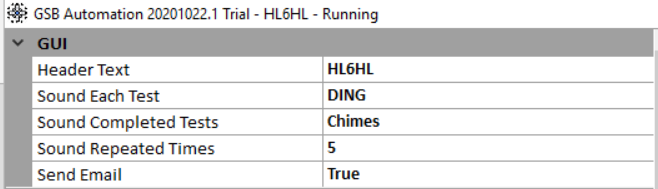
Main GUI showing all control panels and settings areas
GSB Settings Panel
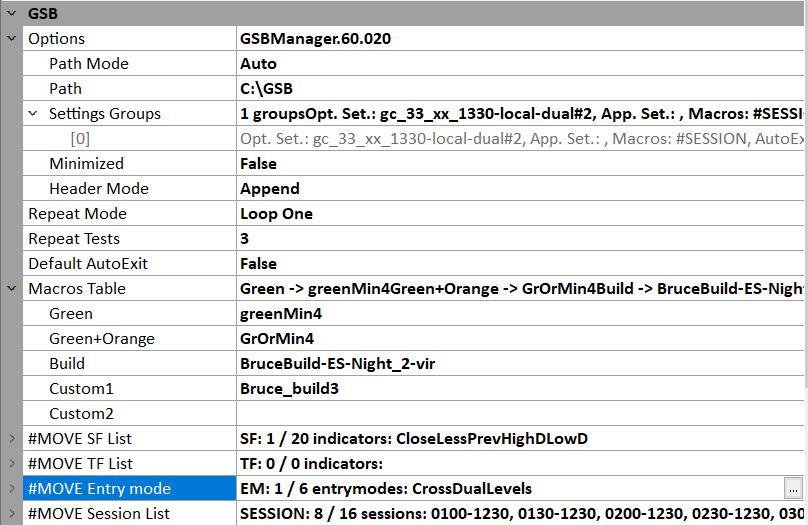
Configure GSB-specific settings for automation runs
- Control Panel – Start, pause, and monitor automation runs
- Settings Panel – Configure entry modes, sessions, and filters
- Output Panel – View generated files and export options
- Status Panel – Monitor progress and view logs
Control Parameters
GSB Automation provides fine-grained control over entry modes, sessions, time bars, and secondary filters.
Move Entry Mode
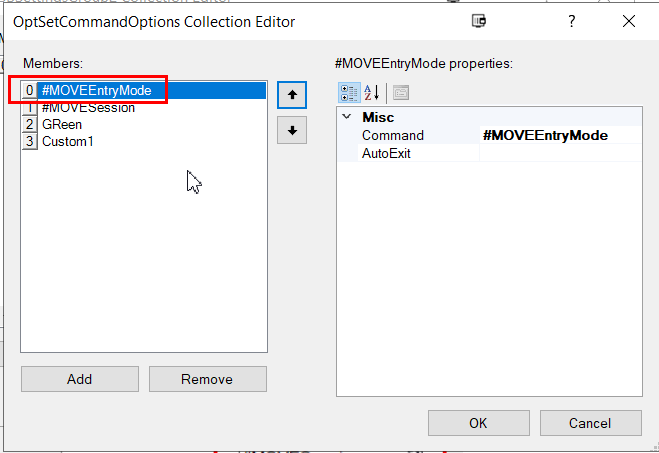
Configure entry mode parameters for different trading scenarios
Move Session
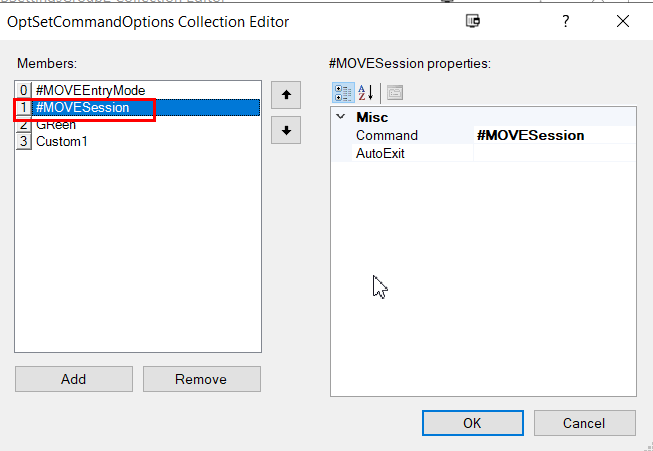
Define trading session parameters and timing
- Entry Mode – Controls how and when trades are initiated
- Session Times – Defines active trading hours (e.g., 9:00-14:30 vs. 8:30-15:00)
- Time Bar Interval – Sets the bar size for data analysis
- Secondary Filters – Applies trend filters like Close vs. CloseD
Macros, Indicators & Output
GSB Automation supports macro creation, indicator import, and structured output for execution platforms.
Creating and Using Macros
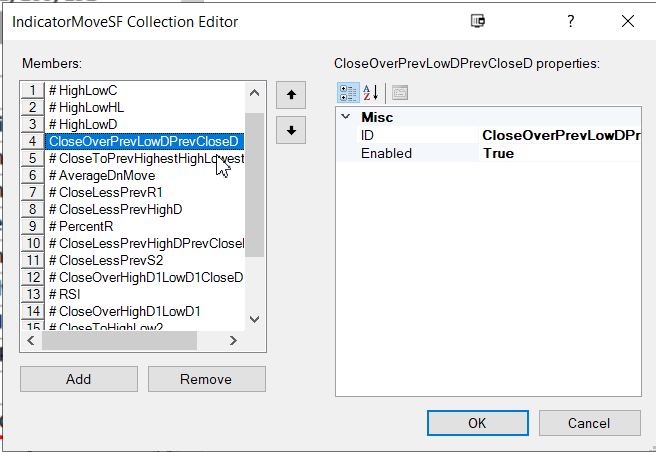
Macro editor for creating reusable automation scripts
Output Structure
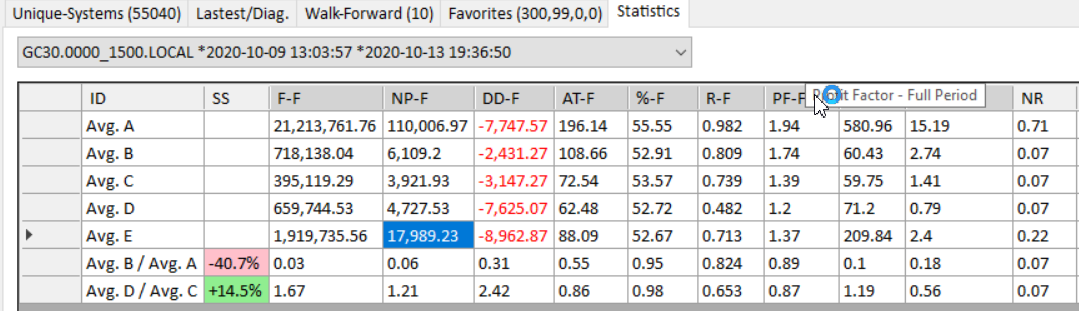
Output settings for generated files and export formats
Output files are organized by market and system type, with standardized naming conventions for easy integration with execution platforms.
The output structure includes strategy code files, parameter definitions, and execution templates ready for import into TradeStation or other platforms.
From Systems to Live Trading
The workflow from GSB-validated systems to live trading execution follows a clear path.
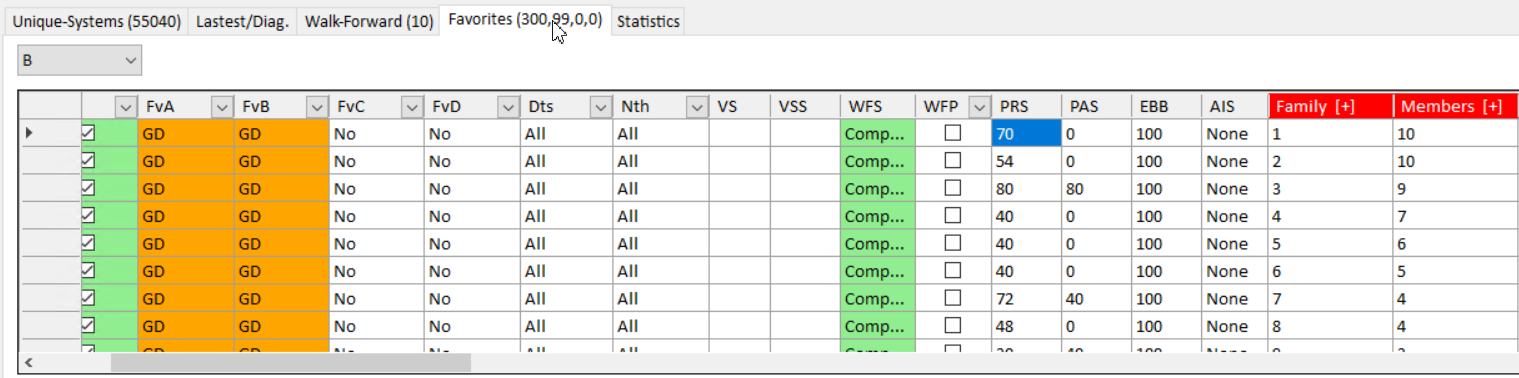
Typical workflow from GSB system file to broker platform
Typical Workflow
Automation Summary Spreadsheet
The automation summary spreadsheet provides a centralized view of all automation runs, improving consistency and traceability.
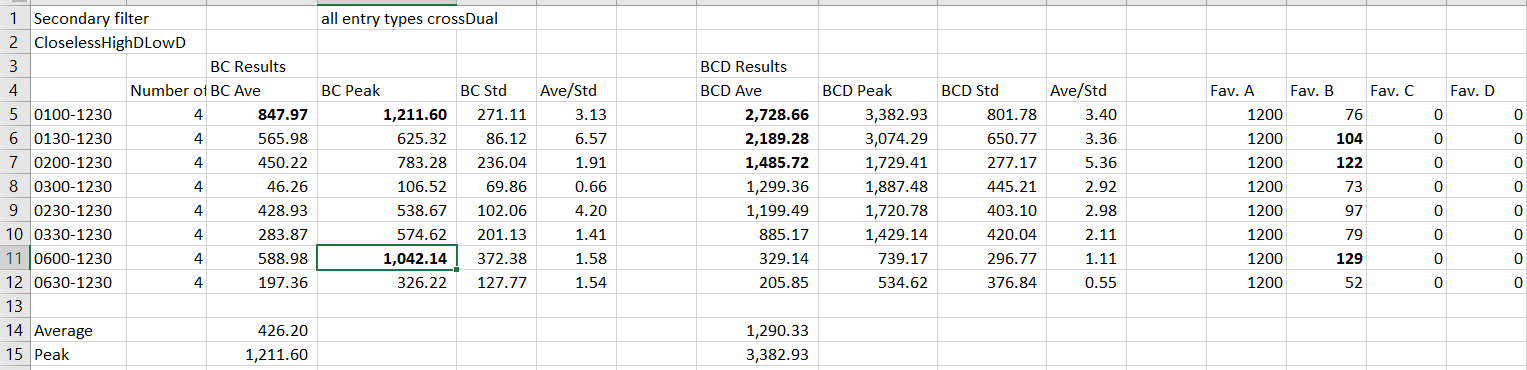
Automation summary spreadsheet showing all configured runs
How to Use the Spreadsheet
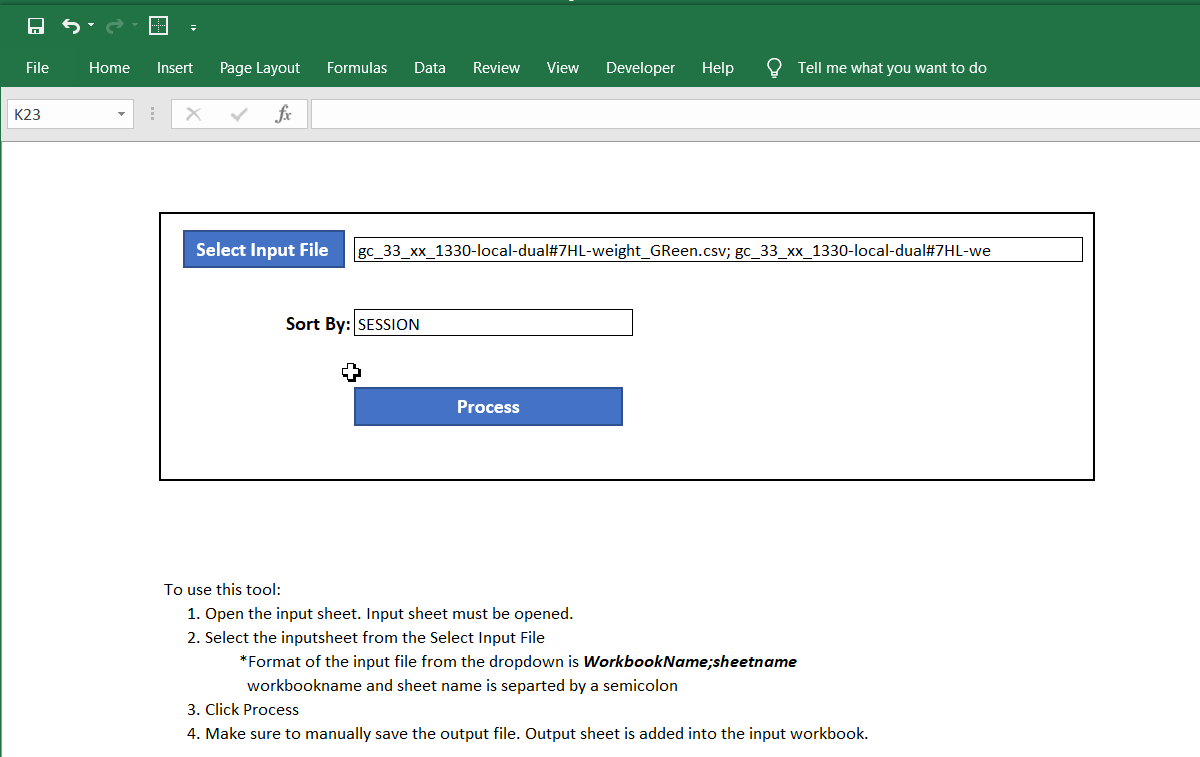
Step-by-step guide for working with the automation spreadsheet
- Centralized tracking of all automation configurations
- Easy comparison of different parameter sets
- Improved consistency across multiple runs
- Full traceability from configuration to output
- Export capabilities for documentation and review
Advanced Methods
GSB Automation includes advanced methods for improved repeatability and workflow efficiency.
Improved Repeatability Method

The improved repeatability method ensures consistent results across runs
The improved repeatability method addresses common issues with automation consistency by implementing standardized seed management, deterministic processing order, and version-controlled configurations.
This ensures that running the same configuration multiple times produces identical results, which is critical for validation and debugging workflows.
Shortcut Method
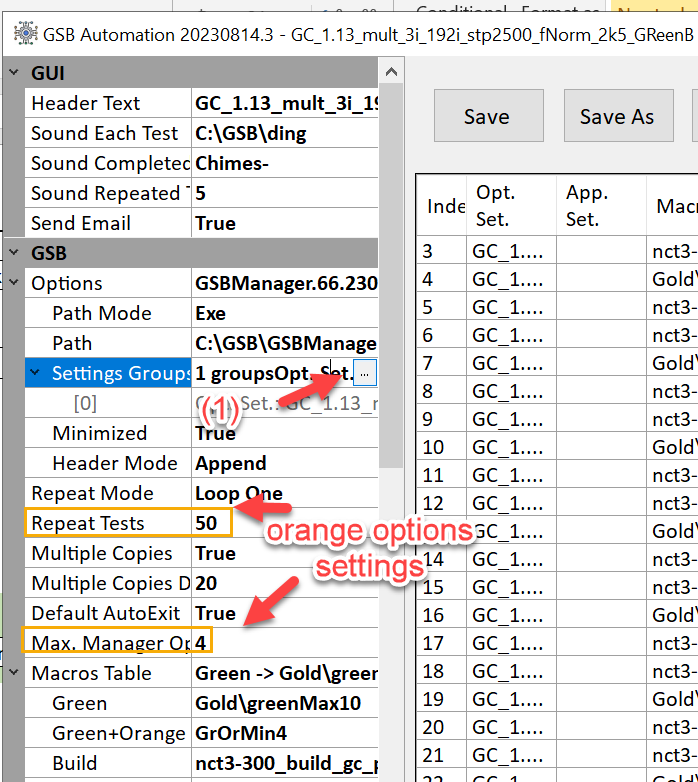
The shortcut method for faster workflow execution
The shortcut method allows experienced users to skip certain validation steps when working with known-good configurations. This dramatically speeds up workflow execution while maintaining control over which validations are bypassed.
Day of Week Examples
GSB Automation supports day-of-week restrictions for systems that should only trade on specific days.
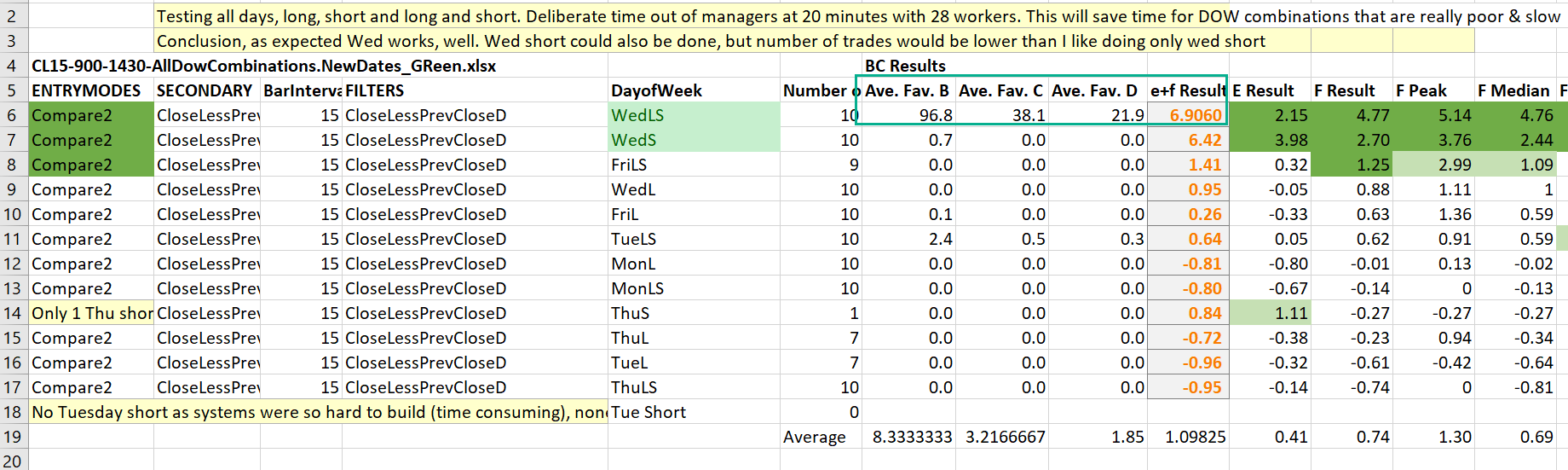
Configuring day-of-week restrictions for trading systems
- Monday restrictions – Avoid gaps and weekend news impact
- Friday restrictions – Avoid holding over weekends
- Mid-week only – Trade only Tuesday-Thursday for maximum liquidity
- Event-based – Restrict around known economic releases
Reference & Tips
Quick reference for GSB Automation settings, troubleshooting tips, and best practices.
New Features
GSB Automation is regularly updated with new features and improvements. Check the release notes in the members area for the latest additions.
- Enhanced macro support for complex workflows
- Improved spreadsheet export options
- Better error handling and logging
- Performance optimizations for large runs
Troubleshooting Tips
- Output files not generating – Check data paths and ensure GSB Pro is properly configured
- Inconsistent results – Verify repeatability settings and seed management
- Slow performance – Consider using the shortcut method for known-good configurations
- License issues – Ensure both GSB Pro and GSB Automation licenses are active
Best Practices
- Always use the spreadsheet for tracking configurations
- Test with the improved repeatability method first
- Document any custom macros or configurations
- Keep output directories organized by date and market
- Review logs regularly for warnings or errors