
GSB Resource Manager Documentation
Complete guide to organizing and managing data files, parameter sets, and portfolios across the GSB ecosystem.
Introduction
GSB Resource Manager is a centralized tool for organizing and maintaining the data files, parameter sets, portfolios, and configuration files used across the GSB ecosystem. Rather than hunting through scattered folders, Resource Manager provides a unified interface for managing all trading resources.
- Centralizes Resources: Manage price data files, parameter sets, equity curves, and portfolio definitions from one location
- Organizes Projects: Group resources by strategy, market, timeframe, or robustness state
- Integrates Tools: Seamlessly connect with GSB core, EWFO, Portfolio Analyst Pro, and GSB Automation
- Validates Consistency: Perform sanity checks for missing files, duplicate names, and mismatched parameters
Why Use GSB Resource Manager?
As your trading system development grows, you accumulate hundreds of price data files, parameter sets, and portfolio configurations. Without organization, finding the right resources becomes time-consuming and error-prone. GSB Resource Manager solves this by providing a structured, searchable repository that integrates directly with your other GSB tools.
Key Concepts
GSB Resource Manager handles several types of resources used throughout the GSB ecosystem:
Price Data Files
Historical market data files used for optimization, verification, and walk-forward testing
Parameter Sets
Saved optimization parameters, indicator configurations, and system settings
Portfolio Definitions
Collections of systems configured for Portfolio Analyst Pro analysis
Configuration Files
Workspace settings, macro definitions, and tool preferences
Resources can be organized into logical groupings:
- By Strategy: Group all resources related to a specific trading approach (e.g., "Mean Reversion NQ", "Trend Following ES")
- By Market: Organize by instrument (e.g., "S&P 500 Futures", "Crude Oil", "Bitcoin")
- By Timeframe: Separate intraday from swing trading resources
- By Robustness State: Track which systems are in development, testing, or production
GSB Resource Manager connects with other GSB tools:
GSB Core
Access price data and save optimization results directly to managed locations
Enhanced Walk Forward Optimizer (EWFO)
Feed organized parameter sets into walk-forward testing workflows
Portfolio Analyst Pro
Export curated system collections for portfolio construction and Monte Carlo analysis
GSB Automation
Configure data sources and output destinations for automated workflows
Installation & Setup
GSB Resource Manager is included with your GSB Pro installation. Follow these steps to set up your resource management environment.
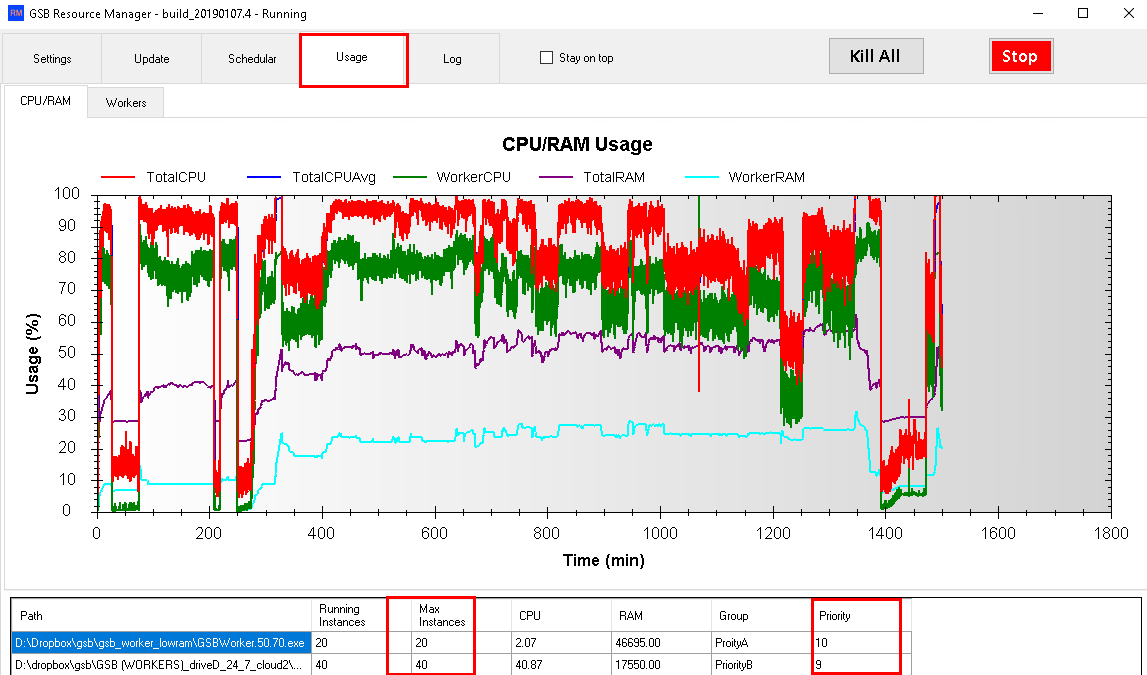
GSB Resource Manager Interface: Centralized view of all trading resources organized by project and type.
Setup Steps
- 1Launch Resource Manager: Open GSB Resource Manager from the GSB Pro tools menu or start menu shortcut.
- 2Configure Root Folders: Set up the base directories where your price data, parameter files, and outputs are stored.
- 3Scan Existing Resources: Let Resource Manager discover and index existing files in your configured directories.
- 4Create Initial Projects: Organize discovered resources into logical projects and collections.
Interface Overview
The GSB Resource Manager interface is designed for efficient navigation and organization of trading resources.
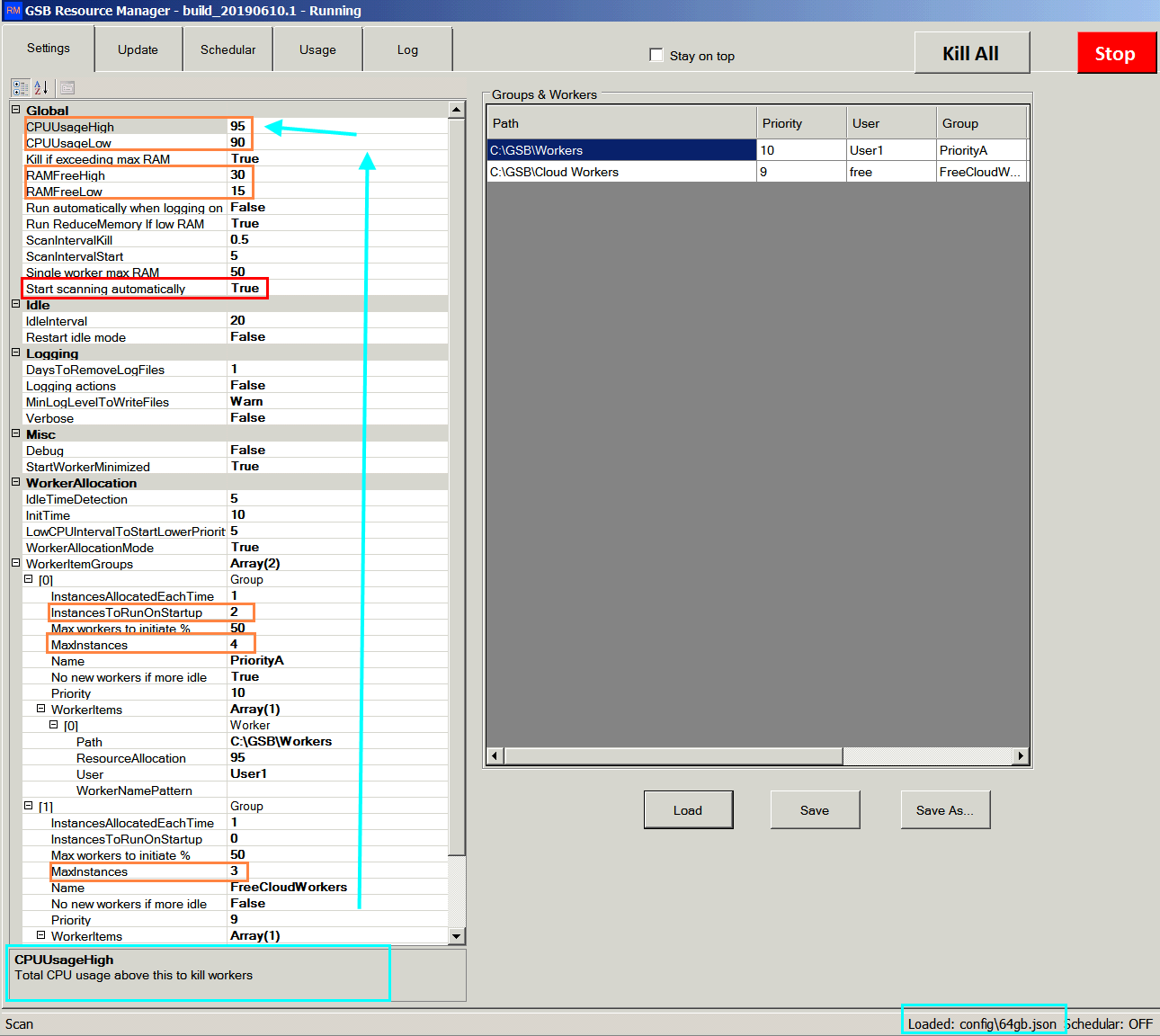
Settings Panel: Configure folder paths, integration options, and resource management preferences.
Main Interface Components
Project Tree
Hierarchical view of all projects and their contained resources. Expand/collapse to navigate quickly.
Resource List
Detailed list of resources in the selected project. Sortable by name, type, date, or status.
Properties Panel
View and edit metadata for selected resources including tags, descriptions, and linked tools.
Status Bar
Shows resource counts, validation status, and integration connection state.
Typical Workflow
Follow this workflow to effectively manage your trading resources with GSB Resource Manager.
Create or Open a Project
Start by creating a new project for your trading strategy or open an existing one. Projects serve as containers for related resources.
Add or Register Resources
Add folders, parameter files, equity curves, and configuration files to your project. Resource Manager tracks their locations and metadata.
Tag and Categorize
Apply tags for market, timeframe, walk-forward group, or robustness state. This makes resources easily searchable and filterable.
Link or Export to Other Tools
Connect resources to EWFO for walk-forward testing, Portfolio Analyst Pro for portfolio analysis, or GSB Automation for automated workflows.
Audit and Clean Resources
Periodically review your resources. Retire obsolete parameter sets, archive old projects, and ensure all active resources are valid.
Main Features
View all key files and parameter sets in one consolidated interface instead of navigating through scattered folders. Filter by type, date, or project to quickly find what you need.

Apply flexible tags to organize resources by any criteria: strategy type, market, timeframe, development stage, or custom categories. Create smart groups that automatically collect resources matching specific criteria.
- Multi-tag support for flexible organization
- Smart groups with automatic filtering
- Custom tag categories for your workflow
Perform automated validation to catch common issues before they cause problems in your optimization or trading workflows.
Missing Files
Detect when referenced files have been moved or deleted
Duplicate Names
Identify parameter sets or resources with conflicting names
Mismatched Parameters
Flag inconsistencies between linked resources
Stale Data
Identify price data files that haven't been updated recently
Other GSB tools can read directly from Resource Manager's organized structure, eliminating the need to manually specify file paths in each tool.
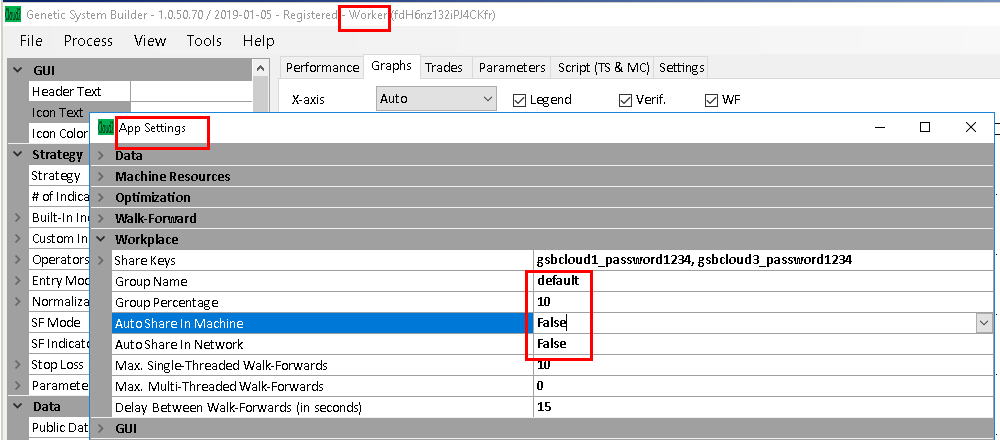
Tool Integration
GSB Resource Manager connects with all major GSB ecosystem tools to streamline your workflow.
GSB Core Integration
Configure GSB to save optimization results directly to managed project folders. Access organized price data files without manual path entry.
Benefit: Newly generated systems are automatically cataloged and tagged based on project settings.
EWFO Integration
Export curated parameter sets directly to Enhanced Walk Forward Optimizer. Resource Manager tracks which systems have been through walk-forward validation.
Benefit: Maintain a clear audit trail of which systems have passed rigorous walk-forward testing.
Portfolio Analyst Pro Integration
Build portfolio definitions from organized system collections. Import equity curves and performance data for Monte Carlo analysis.
Benefit: Quickly assemble portfolios from validated systems without hunting through folders.
GSB Automation Integration
Point automated workflows at managed resource locations. GSB Automation reads input data and writes outputs to organized project folders.
Benefit: Automated system building produces properly organized, cataloged results.
Best Practices
- Use consistent prefixes for market symbols (e.g., "ES_", "NQ_", "CL_")
- Include timeframe in file names (e.g., "_5min", "_daily", "_60min")
- Add version or date suffix to parameter sets (e.g., "_v2", "_2024Q1")
- Avoid special characters that cause platform compatibility issues
- Date-stamp parameter sets when saving new versions
- Keep previous versions in an "Archive" folder rather than deleting
- Document major changes in the resource description field
- Use "Current" tags for active production resources
- Run consistency checks monthly to catch stale or missing files
- Retire parameter sets that haven't been used in 6+ months
- Archive completed projects that are no longer actively developed
- Mirror Resource Manager structure in your backup system
- Match backup folder structure to Resource Manager projects
- Include Resource Manager's index files in backups
- Test restoration periodically to ensure backups are usable
- Keep at least one off-site backup of production resources
Reference & Tips
GSB Resource Manager sits at the center of your trading system development process:
- 1Design and Test: Build and test strategies in GSB core, saving results to managed project folders.
- 2Organize and Curate: Use Resource Manager to tag, categorize, and validate the best parameter sets and portfolios.
- 3Validate: Feed curated resources into EWFO for walk-forward testing and Portfolio Analyst Pro for portfolio construction.
- 4Deploy: Export validated systems to GSB Automation for production workflows and live trading.
- Start Simple: Begin with a few well-organized projects rather than trying to catalog everything at once.
- Use Descriptive Tags: Tags like "WF-Passed", "Production", "Development" help you quickly find resources in the right state.
- Review Before Running: Always run consistency checks before starting major optimization or automation runs.
- Document Decisions: Use the notes field to record why you created specific groupings or retired certain resources.